
Overview
- Stone Edge can create a quote, or estimate, when a customer is requesting information about a product, but is not yet prepared to order and pay for it.
- Quotes can be duplicated, modified, printed and emailed; when the customer is ready to commit, the program can turn a quote into an order.
- Quotes do not allocate inventory unless they are turned into an order.
Parameters
- QuoteBCCAddress -> Email address to send copies of quotes to.
- QuoteEmailTemplate -> Default email template.
- QuotePDFTemplate -> Name of report to use for emailing Quotes as PDFs.
- QuoteTemplate -> Default template for printed quotes.
- QuoteIDLabel -> Label for quote ID field on quote reports.
- QuoteLabel -> Large text label for top of quote reports.
- QuoteNumberLabel -> Label for quote number field on quote reports.
- QuoteLastCopyMessage -> Prints near the top of the last copy of each quote if more than one copy is printed. EX: FILE COPY
- QuoteLineShade -> True enables alternate line shading on printed quotes.
Create a Quote
- Main Menu -> Create a New Order -> For a New Customer
OR
Main Menu -> Create a New Order -> For an Existing Customer - Enter order data like normal besides payment information.
- Click “Quotes” on the top-bar to open the Quotes screen.
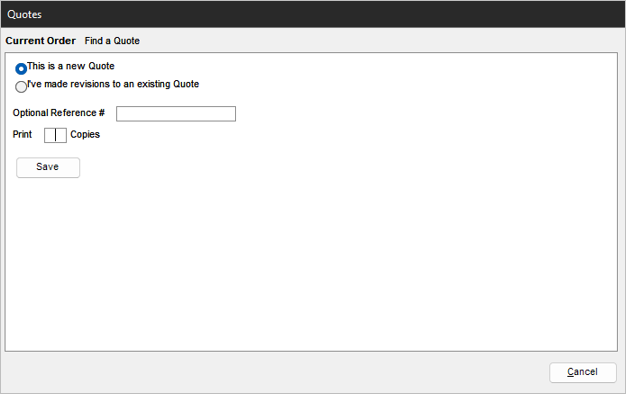
- Configure options:
- Enter a Reference # for additional search criteria.
- Enter the number in printed copies field to print a copy of the current quote.
- Click “Save”.
- If emails are configured in Stone Edge, you will be prompted to send a copy of the quote via email to a customer
- The email will be prepopulated with the Bill-to email if it was provided.
- Parameter QuoteEmailTemplate needs to be set for template to prepopulate.
- Click “Cancel” to choose not to send a quote, the quote will still be saved.
View an Existing Quote
- Main Menu -> Create a New Order -> For a New Customer -> Quotes
OR
Main Menu -> Create a New Order -> View Quotes - Click “Find a Quote” at the top (if screen was opened with method 1).
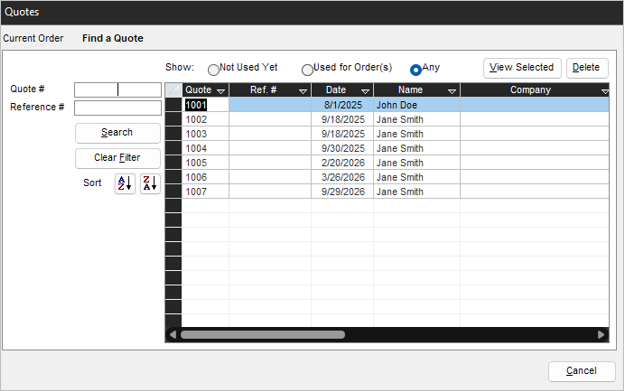
- Search for a quote using filters.
- Click a quote to select it.
- Click “View Selected” to open it in the Manual Orders/ACS screen.
- Click “Delete” to delete the quote data.
Manipulate a Quote
- Following the section above to load a quote.
- Update the data, omitting payment data.
- Click “Quotes” on the top-bar to open the Quotes screen.
- Save the Quote:
- Choose “This is a new Quote” to save as a new quote entry
- Choose “I’ve made revisions to an existing Quote” to overwrite the existing quote data.