
Overview
- Allows credit card transactions using terminal directly through a direct connection
- Requires eMerchant/NMI account.
Setup
Physical Hardware
- Terminal will be provided by NMI.
- Use provided cord to connect to an ethernet connection and power source.
- Device will connect to internet and install updates if needed.
NOTE: The device does not need to physically connect to any PC.
Stone Edge
- Main Menu -> Settings -> System Functions -> Set System Parameters
- Set the following system parameters:
- NMIEMVSecurityKey -> Provided by NMI
- NMIPOSSecurityKey -> Provided by NMI (typically the same as above)
- CreditCardProcessorPOS -> NMIGateway
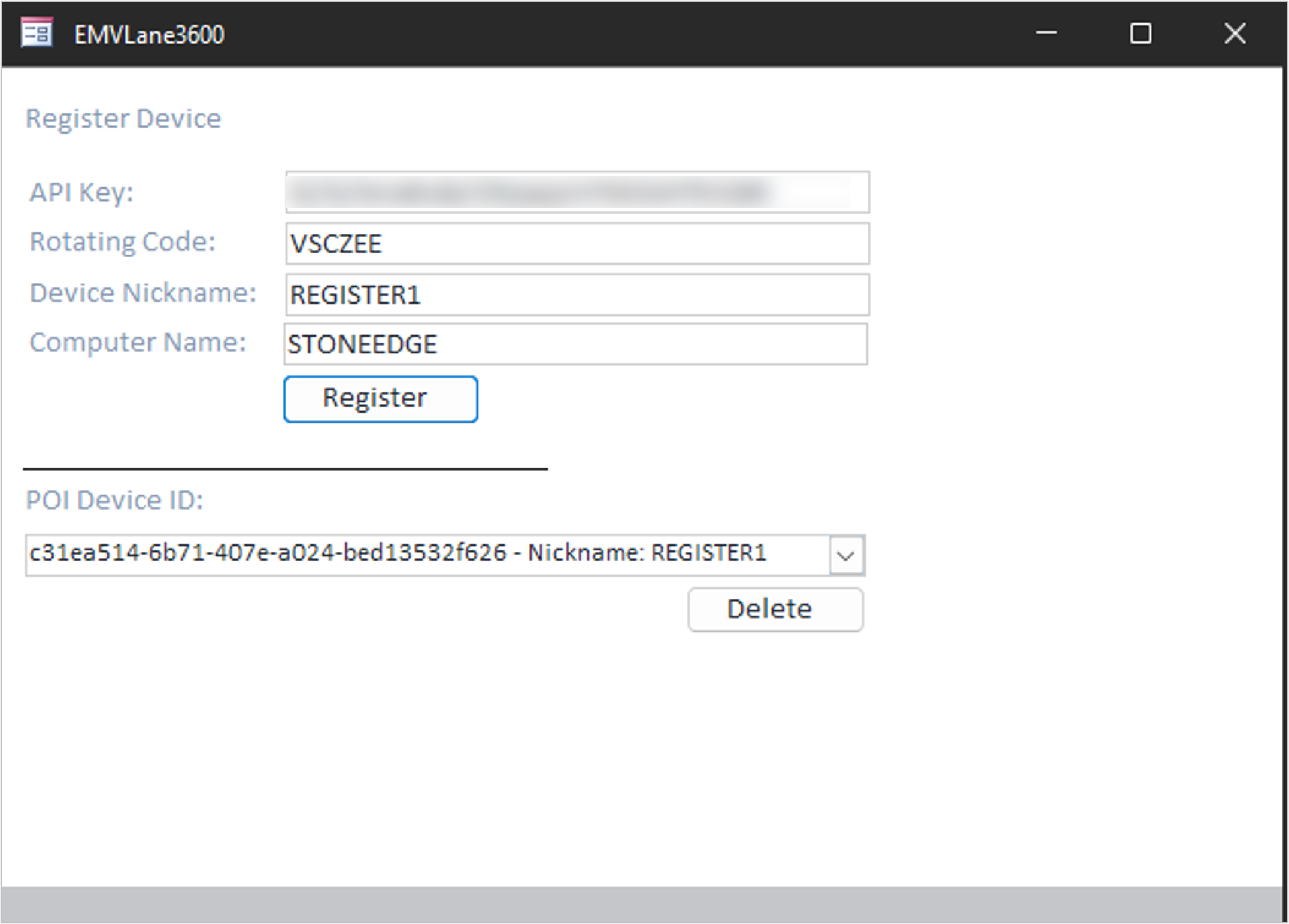
- Main Menu -> Settings -> System Functions -> EMV Setup
- Register Device:
- API Key -> populated from parameters
- Rotating Code -> provided by terminal
- Device Nickname -> Something unique to recognize the connection
- Computer Name -> populated using computer name
- Click “Register”.
- The terminal will be updated with the device nickname signaling a successful connection.
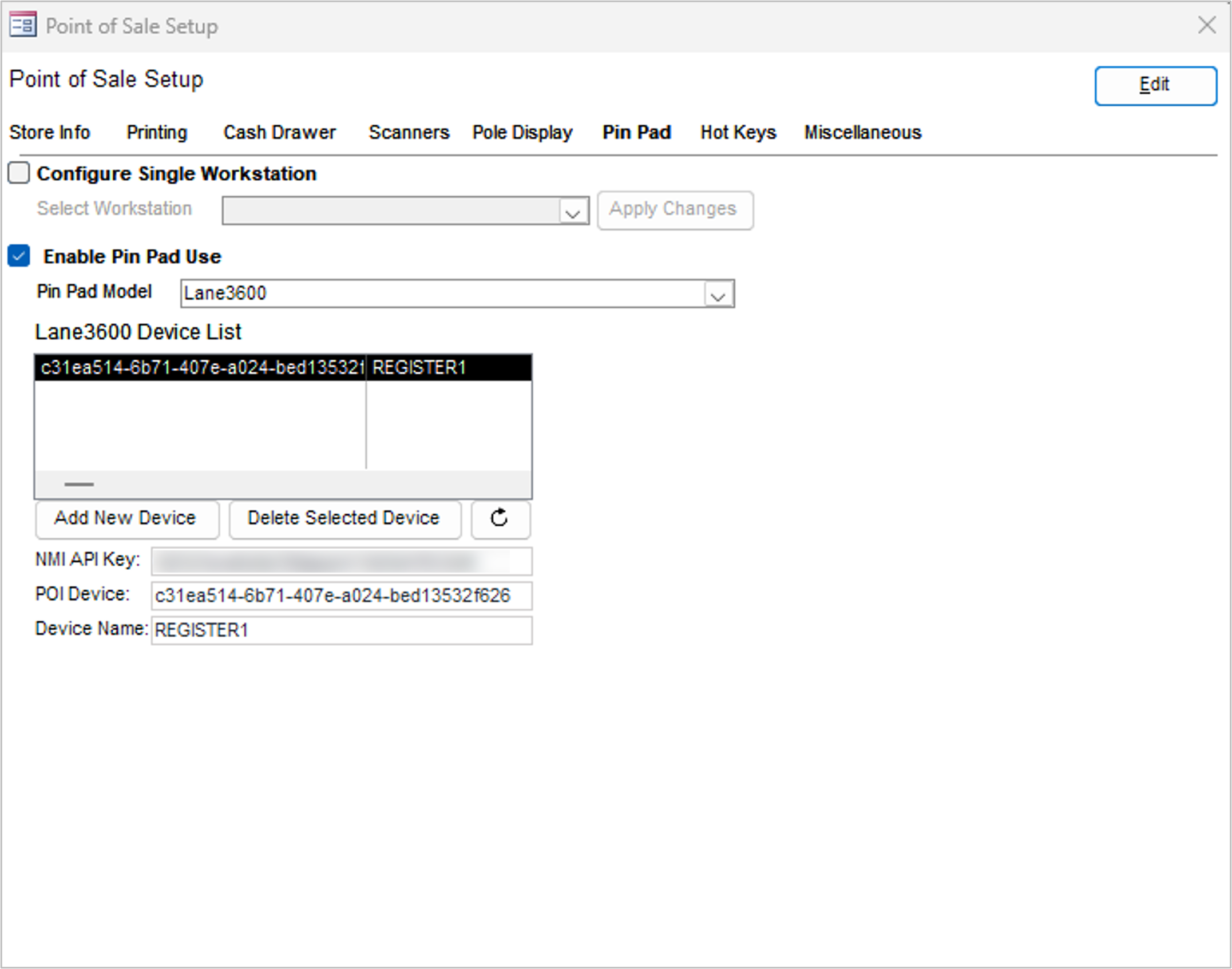
Alternatively, device setup can be done in the Point-of-Sale Setup (not recommended)
- Main Menu -> Settings -> Order Functions -> Point-of-Sale Setup
- Pin Pad -> Edit (top right)
- Toggle to enable pin pad use and change pin pad model to Lane3600.
- Click “Add New Device”.
- Follow prompts to add rotating code and nickname.
- Device list will be updated
NOTE: To see existing POS devices click the refresh button. - Click “Save”.
- Clicking the entry in the Device List will populate the data below.
POS
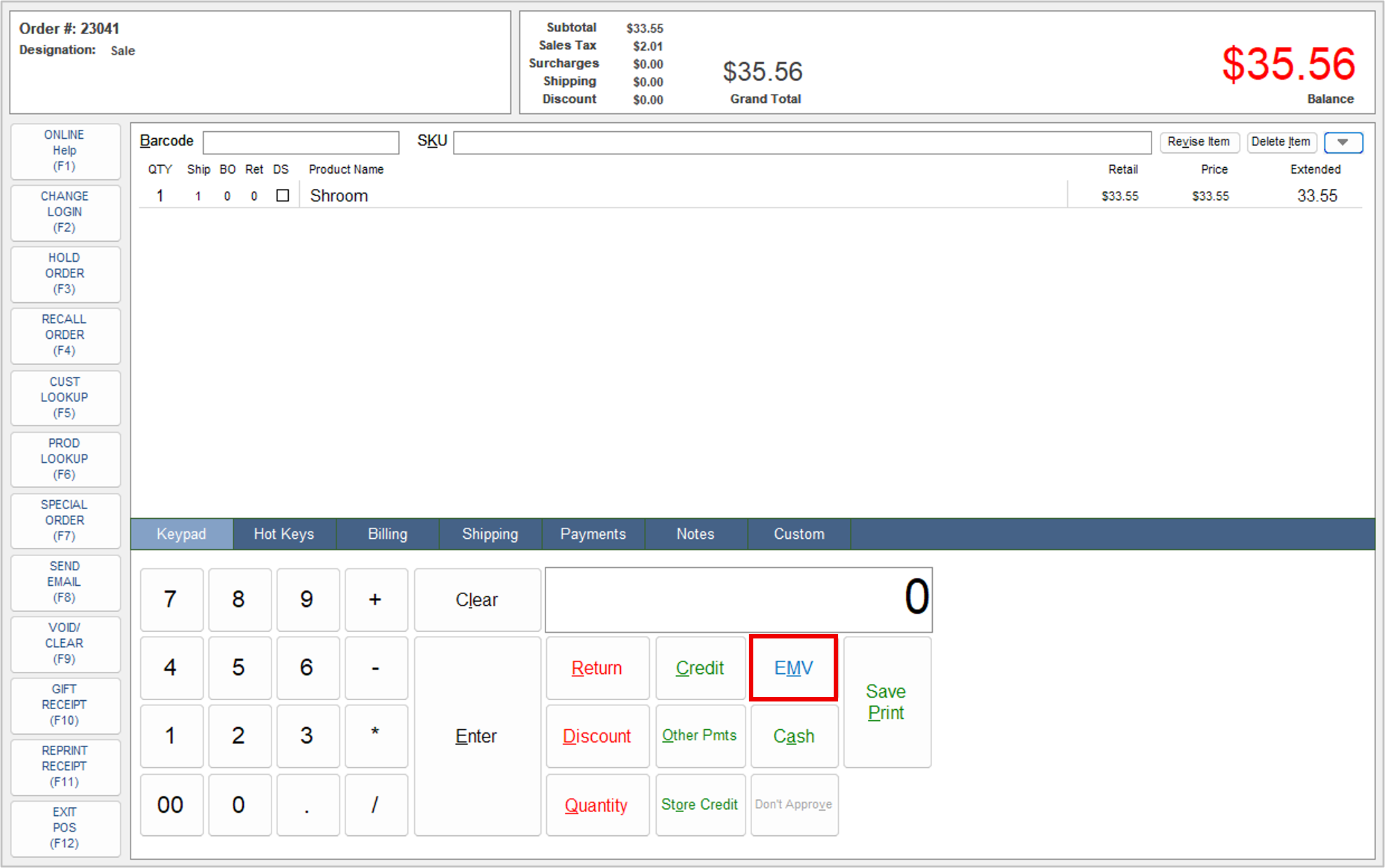
- Create a POS order like normal.
- Click EMV when payment is due.
- Wait for terminal to update with total due.
- Have customer pay with credit card/digital wallet.
- Stone Edge will be updated with message of successful transaction.
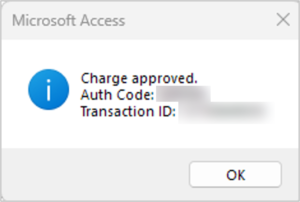
- Standard POS process will proceed allowing next customer to be serviced.
Returns
Credit can be issued against the original charge on the POS and view orders screens.
Reconfiguring Terminal
Sometimes the terminal may need to be paired with a different computer.
- Navigate to EMV Setup screen (Settings -> System Functions)
- Click dropdown next to POI Device ID to find specific terminal.
- Click “Delete” button.
- A notification will be shown confirming terminal has been removed.
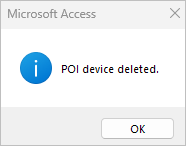
- Entry will be removed from list, and terminal will now show rotating code instead of device nickname.
FAQ
Q: Can I do multiple payments?
A: Have the customer pay with the other payment method, then use the EMV terminal for the remainder. Using 2 credit cards is not possible as this time.
Q: What if a customer no longer wants to pay with card after I clicked EMV?
A: Have the customer click the red X button on the terminal to cancel the transaction.
Q: I’m getting an error during setup!
A: Make sure the rotating code is correctly entered.
Q: The pin pad isn’t responding!
A: Confirm terminal has not been disconnected to ethernet. Slow speeds may also be a result of a slow network connection.