
Overview
- Reviews the file import feature in Stone Edge and variety of requirements per file import type.
- Imported files must be .mdb .txt or .csv.
- Quotes cannot be in files or they will cause errors.
Basic Importing
- Navigate to “Import Data” screen.
- Confirm Import category is correct.
- Click folder icon to right of “file to import” box
- Open file to importing from.
- Table will appear showing file contents if loaded correctly.
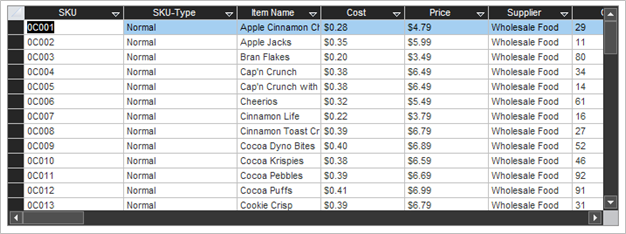
(example of loaded file)
- Click “Next”
- Configure settings per import type:
- Use dropdowns next to fields to map data.
- Not every column in table must be mapped.
- Table columns can be mapped more than once.
- Fields with stars must be mapped.
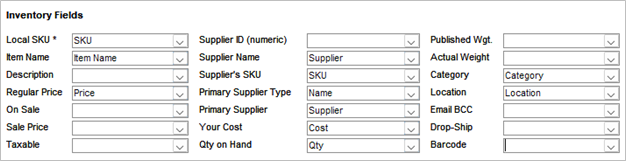
(example of mapped data)
- Click “Next” and map desired fields until “Finish and Import” page.
- Click “Backup Before Importing” to toggle off if backup is not needed.
- A backup is highly recommended.
- If toggled on pop-up will appear when click “Begin Import”.
- Click “Test Data”.
- Pop-up will appear
- Will list basic issues with data or mapping.
- Will say “No problems detected!” if data and mapping appear to have no errors.
- Click “Begin Import”.
- Pop-up will appear with an overview of the import.
General Import Options
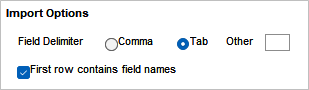
- Import Options
- Field Delimiter
- Comma -> typically file type will be .csv
- Tab -> typically file type will be .txt
- Other
- First row contains field names -> Select if the file has headers.
- Field Delimiter
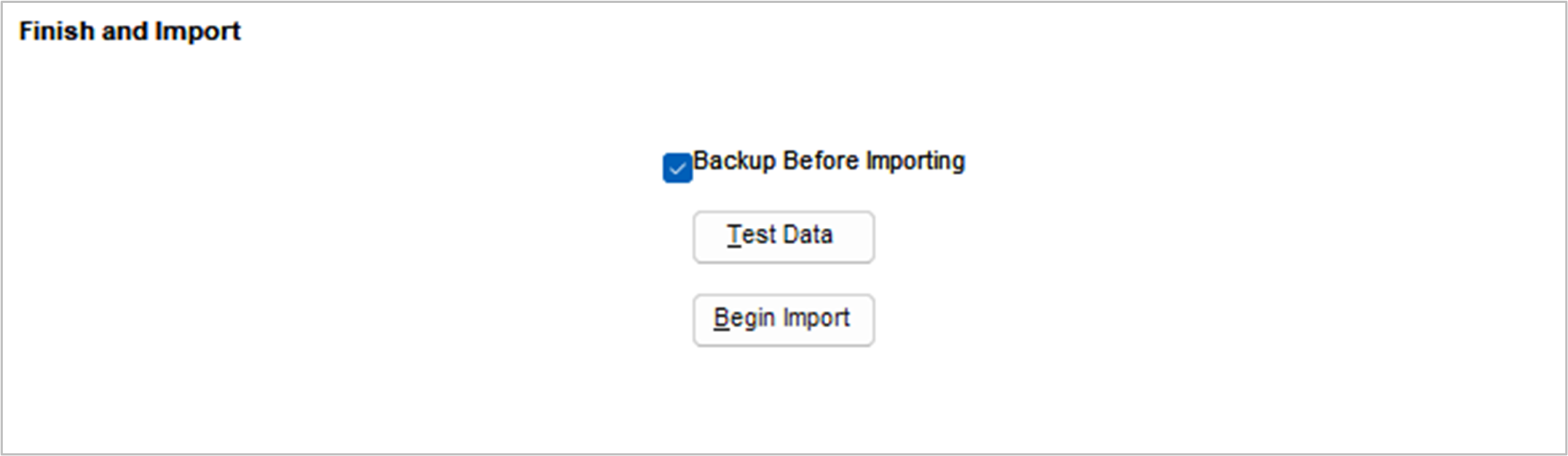
- Finish and Import -> Last screen before importing.
- Backup Before Importing -> Toggled by default, saves data before editing incase imported data causes issues.
- Test Data -> Checks first 1000 rows of data can be read. Does not check if data is mapped correctly.
- Begin Import -> Click to start importing data.
Import Products
- Main Menu
- Manage My Inventory -> Import My Inventory – File
Options
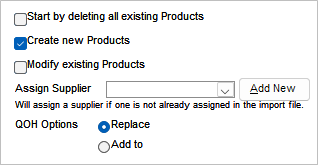
- Start by deleting all existing Products -> toggle if restarting inventory
- Create new Products -> if product doesn’t exist, create one
- Modify existing Products -> if product already exists, then change specifications to match file
- Assign Supplier -> if a supplier is not listed as a column in the file, this supplier will be assigned for all products
- QOH Options -> choose to replace or add to existing quantity
Required Fields
- Local SKU -> Existing items will be referenced by this
Recommended Fields
- Item Name
- Regular Price
- Supplier SKU
- Primary Supplier
- Primary Supplier Type (required if using above field)
- Your Cost
- Qty on Hand
All Fields
Inventory Fields
| Local SKU | Supplier ID (numeric) | Published Wgt. |
| Item Name | Supplier Name | Actual Weight |
| Description | Supplier’s SKU | Category |
| Regular Price | Primary Supplier Type | Location |
| On Sale | Primary Supplier | Email BCC |
| Sale Price | Your Cost | Drop-Shop |
| Taxable | Qty on Hand | Barcode |
| Discontinued | Target Qty | Fulfillment Center |
| Single Unit SKU | Reorder Pt. | No Fulfillment |
| Single Unit SKU Qty. | Use Serial # | Hazmat Shipping |
| Ignore Inventory | No Layaways | Pack Separately |
| Auction Title | Length | This is a Box |
| Retail Price | Width | Default Box |
| Country of Origin | Height | No Box Needed |
Custom Fields
| Text1 | Integer1 |
| Text2 | Integer2 |
| Text3 | Integer3 |
| Text4 | Integer4 |
| Text5 | Integer5 |
| Currency1 | Date1 |
| Currency2 | Date2 |
| Currency3 | Date3 |
| Currency4 | Date4 |
| Currency5 | Date5 |
International Shipping Fields
| International Item Description: |
| HS Tariff Code |
Web Fields
| Image | Headline | Don’t Send to Monsoon |
| Thumbnail | Availability | ISBN |
| Header (Caption) | Contents | ASIN |
| Footer | Ignore QOH on Web | UPC |
| Code | Don’t Sync with Amazon | MAP |
| ID | Don’t Sync with Yahoo | Profit % |
| Path |
Pricing Fields
| Level | Regular Price | Sale Price | On Sale | Level | Regular Price | Sale Price | On Sale | |
| Price 1 | Price 7 | |||||||
| Price 2 | Price 8 | |||||||
| Price 3 | Price 9 | |||||||
| Price 4 | Price 10 | |||||||
| Price 5 | ||||||||
| Price 6 |
NOTES
- Click HERE for full screen overview.
Import Cost, Price & Weight
- Main Menu
- Manage My Inventory -> Import Cost, Price & Weight
Options

- Assign Supplier -> if a supplier is not listed as a column in the file, this supplier will be assigned for all products

- Match Items On
- Local SKU -> Use dropdown to choose column with item SKU
- Match Suppliers On -> use dropdown for fields below to match suppliers
- Supplier ID -> must be numeric data
- Supplier Name -> Must match existing supplier name.
Required Fields
- Local SKU
Recommended Fields
- Supplier ID or Supplier Name
All Fields
Cost, Price & Weight
| Your Cost |
| Published Wt. |
| Actual Weight |
| Regular Price |
| Sale Price |
| Supplier’s SKU |
Pricing Fields
| Level | Regular Price | Sale Price | On Sale | Level | Regular Price | Sale Price | On Sale | |
| Price 1 | Price 7 | |||||||
| Price 2 | Price 8 | |||||||
| Price 3 | Price 9 | |||||||
| Price 4 | Price 10 | |||||||
| Price 5 | ||||||||
| Price 6 |
NOTES
- Click HERE for full screen overview.
Import Customers
- Main Menu
- Manage My Customers -> Import My Customers – File
Options
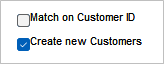
- Match on Customer ID -> use existing customer IDs to update information
- Create new Customers -> create new customers
NOTE: cannot assign new customers their own ID, will be done by program
Required Fields
- None
Recommended Fields
- Full Name
- Address 1
- Address 2
- City
- State
- Zip
- Phone
All Fields
Customer Fields
| Customer ID | Company | Country | Price Level |
| Full Name | Phone 1 | Discount % | |
| Name Prefix | Address 1 | Fax | Cost Plus % |
| First Name | Address 2 | Don’t Ship | Web ID |
| Middle Name | City | Don’t Mail | Web Login |
| Last Name | State | Tax Exempt | Password |
| Name Suffix | Zip | Tax ID |
Custom Fields
| Text1 | Integer1 |
| Text2 | Integer2 |
| Text3 | Integer3 |
| Text4 | Integer4 |
| Text5 | Integer5 |
| Currency1 | Date1 |
| Currency2 | Date2 |
| Currency3 | Date3 |
| Currency4 | Date4 |
| Currency5 | Date5 |
NOTES
- Click HERE for full screen overview.
Import Suppliers
- Main Menu
- Manage My Inventory -> Import My Suppliers
Options
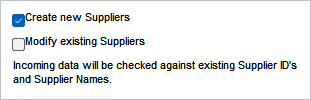
- Create new Suppliers -> Create new suppliers
NOTE: Supplier ID cannot be mapped if adding new suppliers through this import - Modify existing Suppliers -> Uses existing supplier ID + name to identify data to edit
Required Fields
- None
Recommended Fields
- Supplier Name
- Address 1, Address 2
- City
- State
- Zip
- Phone
- Main Contact
- Main Contact Phone
All Fields
| Supplier ID | Address 1 | Main Contact |
| Supplier Name | Address 2 | Main Contact Phone |
| City | ||
| Phone 1 | State | |
| Fax | Zip | |
| Toll Free Phone | Country |
NOTES
- Click HERE for full screen overview.
Import Alternate SKUs
- Main Menu
- Manage My Inventory -> Import My Inventory – File
- Click “Alternate SKUs” from top-bar
Options
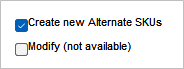
- Create new Alternate SKUs -> create an additional SKU to reference a product
- Modify -> DO NOT SELECT
Required Fields
- Local SKU
- Alternate SKU
- Shopping Cart -> shopping carts must be selected individually (not selected from import file)
All Fields
| Local SKU |
| Alternate SKU |
| Shopping Cart |
Import Quantity Discounts
- Main Menu
- Manage My Inventory -> Import My Inventory – File
- Click “Quantity Discounts” from top-bar
Options
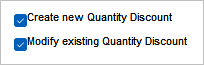
- Create new Quantity Discount -> create an additional SKU to reference a product
- Modify existing Quantity Discount -> Modify existing quantity discounts
NOTE: Starting and ending quantity must be the same as existing entries
Required Fields
- Local SKU
- PriceLevel
- Starting Quantity
- Ending Quantity
- Price
All Fields
| Local SKU | Price |
| PriceLevel | On Sale |
| Strating Quantity | Sale Price |
| Ending Quantity |
Import Kits
- Main Menu
- Manage My Inventory -> Import My Inventory – File
- Click “Kits” from top-bar
Options
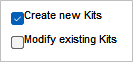
- Create new Kits -> create kits from items not previously set as a kit
- Modify existing Kits -> adds items to existing kits
NOTE: Removing items from kits must be done manually in Stone Edge
Required Fields
- Kit SKU
- Part SKU
- Quantity
All Fields
| Kit SKU |
| Part SKU |
| Quantity |
| Inherit Options |
Import Supplier Purchasing
- Main Menu
- Manage My Inventory -> Import My Inventory – File
- Click “Supplier Purchasing” from top-bar
Options
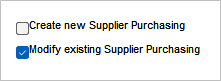
- Create new Supplier Purchasing -> Creates new supplier purchasing record if SKU and supplier exist.
NOTE: If a new primary supplier needs to be defined, first edit the existing primary supplier to not be the primary using a file and in a separate file define the new one. - Modify existing Supplier Purchasing -> edits existing purchasing records when all required fields match existing records
Required Fields
- Local SKU
- Supplier Name OR Supplier ID defined by Primary Supplier Type
- Supplier SKU
All Fields
| Local SKU | Quantity Per Lot | Min Order Unit |
| Primary Supplier Type | Lot SKU | Manufacturers Barcode |
| Supplier Name | Lot Barcode | Lot Description |
| Supplier ID | Cost Per Lot | |
| Supplier SKU | Order By | |
| Is Primary Supplier | Min Order Quantity |
NOTES
- Lot descriptions are based on your lots defined in list maintenance.
- “Is Primary Supplier” default = FALSE if column not defined.
- Minimum Order Unit must be set as:
- P, Pieces, Piece
- L, Lots, Lot
- Order By must be set as:
- P, Pieces, Piece
- L, Lots, Lot
- Q, Pieces in Fixed Lot