
Overview
- Suppliers are vendors that provide merchants with the items they sell.
- Company and contact information, as well as notes and purchase order preferences, are recorded here.
- Supplier information can be entered into the program manually at the Suppliers screen or via text file import.
- When product information is manually entered into the program, the user is required to select a supplier for the product in order to save the new inventory record.
- When new product information is imported from a text file and supplier information is not provided, the program will assign Supplier ID 0 (Default Supplier) as the supplier of the product. It is strongly recommended to add or change the supplier information to the correct supplier rather than using this default record.
- The ID field is used to identify the affected supplier when generating purchase orders or calculating product costs.
- Products can be associated with more than one supplier, however, the information provided for the vendor selected as the Primary Supplier of the item will be used when standard purchase orders are created.
-
- The Primary Supplier’s unit cost is the value that is displayed in the Supplier’s Unit Cost field of the product inventory record as well.
- Once the program has been configured and used in production (particularly if Purchase Orders have been generated), users are strongly cautioned against changing the company information associated with a particular Supplier ID.
- To access the Suppliers screen, go to:
Main Menu -> Manage My Inventory -> Manage My Suppliers
Main Menu -> Manage My Inventory -> View & Manage My Inventory -> Suppliers and Fulfillment -> View Suppliers
The Main Menu shortcut of “Manage My Inventory” can be set to the “View Suppliers” screen in settings.
Description of the Suppliers Screen
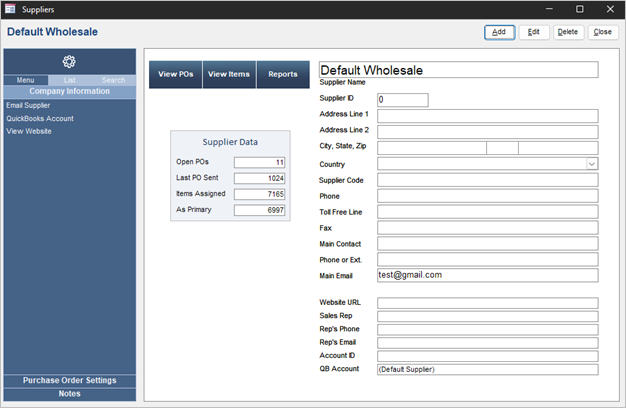
Add Button
- Select Add to open a blank supplier record. Complete the fields and select Save to create a new supplier record.
Edit Button
- Use Edit to change information for the displayed supplier record.
Delete Button
- This removes the supplier record from the database.
NOTE: Use this button with caution as there is no way to reverse its action. - It is not recommended to remove a supplier that may have inventory associated with it.
Close Button
- Click to exit the Suppliers screen.
Accordion Menu
- The Accordion on the left-hand side of the screen contains various supplier-related operations.
- At the top of the Accordion there are three tabs which change the content of the Accordion itself.
- Select a tab to produce a List of the inventory records in the Accordion or choose Search to enter criteria and search for supplier records. Choose Menu to return to the default view of the Accordion.
- Below the Menu, List and Search tabs, there is also list of other supplier-related tabs. As different tabs are selected, the data in the right-hand pane changes.
- Select the Supplier tab to see a list of relevant operations within the Accordion. The other tabs on the Suppliers Accordion do not have additional operations.
- Email Supplier -> Opens send email pop-up with Main Email auto populated as to-address.
- QuickBooks Account -> Sets the QB Account field to the Supplier Name.
- View Website -> Opens website URL with default browser.
Blue Buttons
- View POs -> Opens “View Purchase Orders” with selected supplier selected as search criteria.
- View Items -> Opens “View Inventory” with selected supplier selected as search criteria.
- Reports -> Prompts to print the “PO Status” report.
Purchase Order Settings
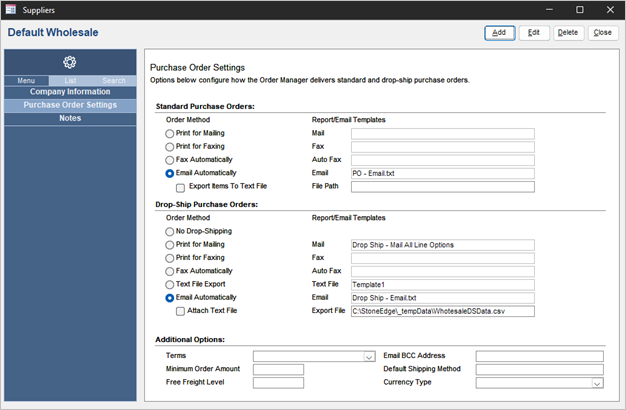
- Standard Purchase Orders
- Order Method -> Select from options how to send purchase order to supplier. If no option is selected, supplier will not be available to send purchase orders to.
- Report/Email Templates -> Select a template in the same row matching Order Method selected.
- Templates are chosen from prepopulated list but can be manually entered as long as report exists in copy of Stone Edge or email template is in email templates folder.
- File Path required for “Export Items to Text File” option.
- Drop-Ship Purchase Orders
- Order Method -> Select from options how to send purchase order to supplier. If no option is selected, supplier will not be available to send drop-ship purchase orders to.
- Report/Email Templates -> Select a template in the same row matching Order Method selected.
- Templates are chosen from prepopulated list but can be manually entered as long as report exists in copy of Stone Edge or email template is in email templates folder.
- Text File populates based on templates created in Fulfillment (Shipping Functions).
- Export File required for “Attach Text File” option.
- Path requires filename + type in file path.
- File type can be .txt or .csv.
- Additional Options
- Terms -> Set a default terms for supplier based on list set in list maintenance.
- Minimum Order Amount -> define a minimum order amount for supplier.
- Email BCC Address -> Adds an automatic BCC when emails are sent to supplier.
- Default Shipping Method -> Selects default shipping method when sending details to supplier.
Notes
- Displays supplier specific notes.
- Notes are added/edited with buttons under within white box (buttons at top are for adding/editing suppliers).