
Overview
- The Inventory screen is where product inventory records are manually created or edited.
- This screen is accessed by going to:
Main Menu -> Manage My Inventory -> View & Manage My Inventory
Description of the Inventory Screen
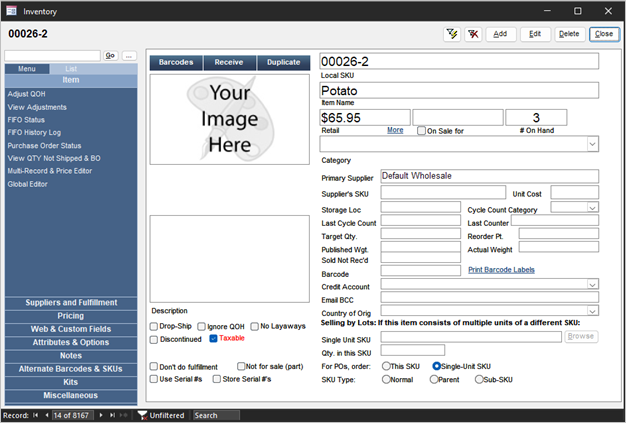
Product SKU
- The SKU of the currently viewed inventory record is displayed in the upper left-hand corner of this screen.
Action Buttons at the Top of the Inventory Screen

- Lightning -> Opens the Filter Items screen, allowing the user to limit the Inventory records that are displayed, based on the SKU or partial SKU number.
- X -> This button removes any filters that were previously applied to the Inventory records display (Filter Items screen)
- Add -> Click to enter a new product record; a blank inventory record is opened.
- Edit -> Click to unlock the current record and make changes to it. Use the Save button to retain the changes and lock the record.
- Delete -> Use this button to remove a product inventory record from the system.
NOTE: It is not recommended to delete inventory items unless they have not been ordered in an order or purchase order. - Close -> Exits inventory screen.
Accordion Menu
- The Accordion on the left-hand side of the screen contains various inventory-related operations.
- At the top of the Accordion there are three tabs which change the content of the Accordion itself.
- Select a tab to produce a List of the inventory records in the Accordion or choose Search to enter criteria and search for inventory records. Choose Menu to return to the default view of the Accordion.
- Below the Menu, List and Search tabs, there is a list of inventory-related tabs. Select a tab to reveal a list of relevant operations within the Accordion and change the data displayed in the right-hand pane. Some categories do not have additional operations in the Accordion.
- Above the accordion menu there is a search box to quick search for a SKU.
Item
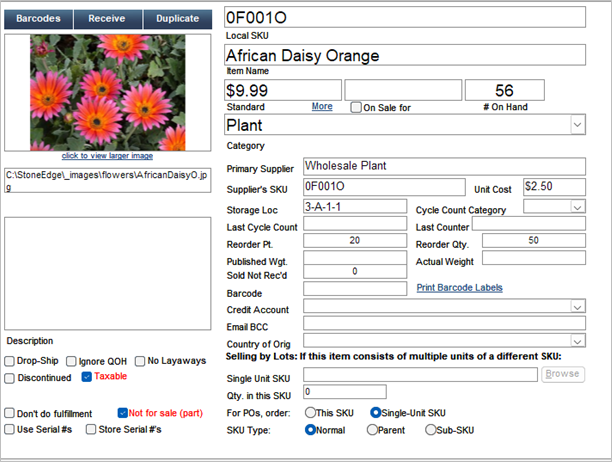
- The default view when loading the inventory screen.
- Displays basic SKU information
- Primary supplier with associated information shown. Navigate to “Suppliers and Fulfillment” tab for more supplier information.
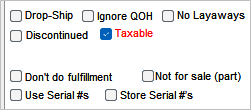
- Toggle buttons in bottom-left of screen include:
-
- Drop-Ship -> Sets item to be fulfilled as drop shipped. Item can have QTY regardless of choce.
- Ignore QOH -> Disregards QOH for current inventory item. Does not reset value currently saved as “# On Hand”.
- No Layaways
- Discontinued -> Labels an item as discontinued.
- Taxable -> Sets an item as taxable. Applicable if parameter UseTaxableField = True
- Don’t do fulfillment
- Not for sale (part)
- Use Serial #s -> Enables serial numbers for inventory item
- Store Serial #s -> Enables storing serial numbers in advanced per item.
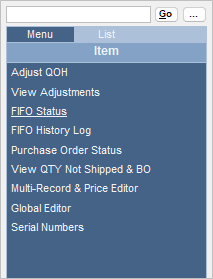
- Item Menu
-
- Adjust QOH -> Opens “Adjust Inventory” screen.
- View Adjustments -> Open “Inventory Adjustments” screen.
- FIFO Status -> Opens pop-up of FIFO status for current inventory item.
Available when parameter TrackInventoryFIFO = True - FIFO History Log -> Opens “FIFO History Log” screen.
Available when parameter LogFIFOHistory = True - Purchase Order Status -> Opens “Purchase Order Expected Dates” table.
- View QTY Not Shipping & BO -> Opens “Inventory Status” pop-up.
- Multi-Record & Price Editor -> Opens “Inventory Editor” screen.
- Global Editor -> Opens “Global Editor” screen.
- Serial Numbers -> Opens “Assigned Serial Numbers” screen
NOTE: Needs “Store Serial #s” enabled.
Suppliers and Fulfillment
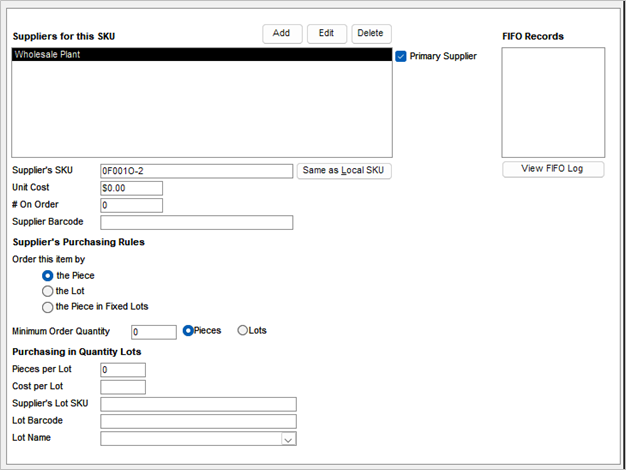
- Displays detailed supplier information for selected inventory item.
- Multiple suppliers can be listed for 1 inventory item.
- FIFO overview on right if enabled.
- Suppliers Menu
- View Suppliers -> Opens “Suppliers” screen
- Fulfillment -> Switches to “Fulfillment” information.
Pricing
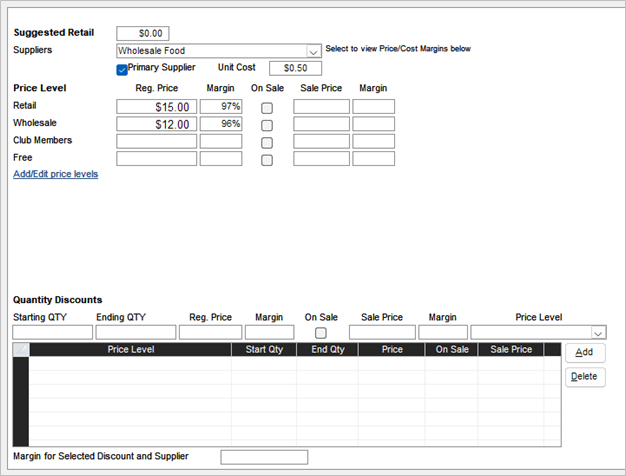
- Displays pricing information and allows manual edits with “Edit” button in top-right.
- Use “Multi-Record & Price Editor” to edit prices in bulk.
- Shows margins for suppliers
NOTE: Cost must be edited on “Suppliers and Fulfillment” tab - Shows multi-level pricing if enabled (parameter UseMultiLevelPricing)
- Quantity Discounts
- QTY cannot overlap when defining discounts.
- Does not need “Edit” button to configure entries.
Web & Custom Fields
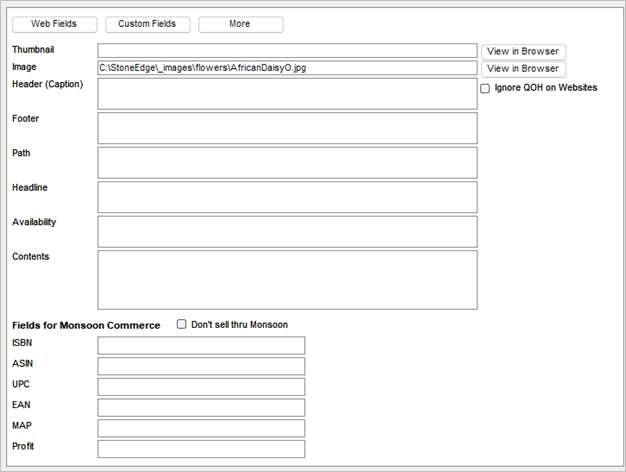
- Web Fields -> The default view; shows miscellaneous information.
- Custom Fields -> Shows custom fields set using Stone Edge’s predefined custom fields
- Can be set in Settings -> Data Functions -> Setup Custom Fields
- More -> Allows custom fields entered into inventory table to be listed
Attributes & Options
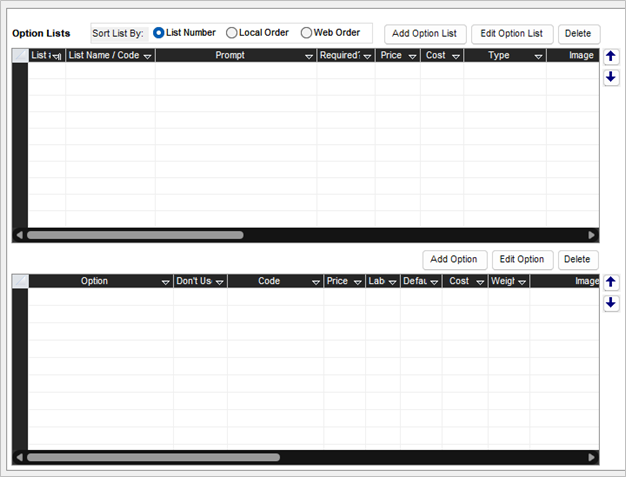
- Allows options to be defined for items.
- Click “Add Option List” to define an option list before using “Add Option” to add options to the specific list.
- Lists can a variety of object types like a dropdown list and text box field.
- Up and down arrows can be used to change order of lists and options.
- Attribute Menu
- Build Sub-SKUs for Item -> Auto-builds sub-SKUs based on options.
- Check parameter “BuildSubSKUDelimiter” for syntax
- Copy Options from Another SKU -> Opens “Copy Option Lists” screen.
- Build Sub-SKUs for Item -> Auto-builds sub-SKUs based on options.
Notes
- Displays notes regarding specific inventory item.
Alternate Barcodes & SKUs
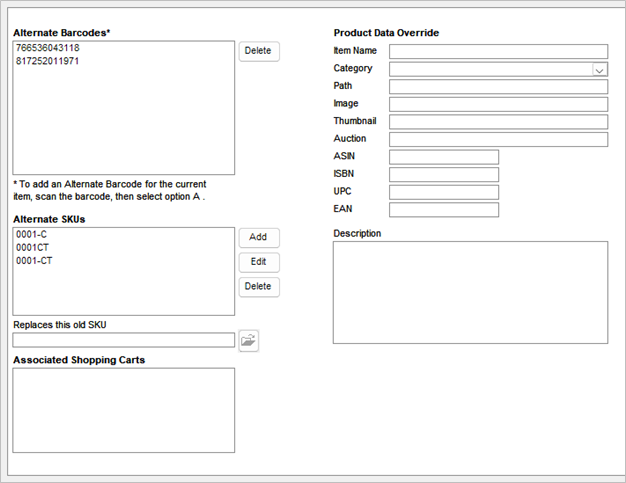
- Displays screen that lists Alternate Barcodes and SKUs
- New barcodes can be scanned to add to the alternate barcodes list without clicking “Edit”
- Use menu next to “Alternate SKUs” to edit Alternate SKUs.
- Add -> Click opens “Alternate SKU” screen.
- Edit -> Click opens “Alternate SKU” with highlighted line selected.
- Delete -> Click deletes highlighted Alternate SKU
NOTE: No warning will appear before deleting. Use with caution.
- Product Data Override is defined on the “Alternate SKU” screen.
Kits

- Displays Kits screen.
- Click HERE for more information.
Miscellaneous
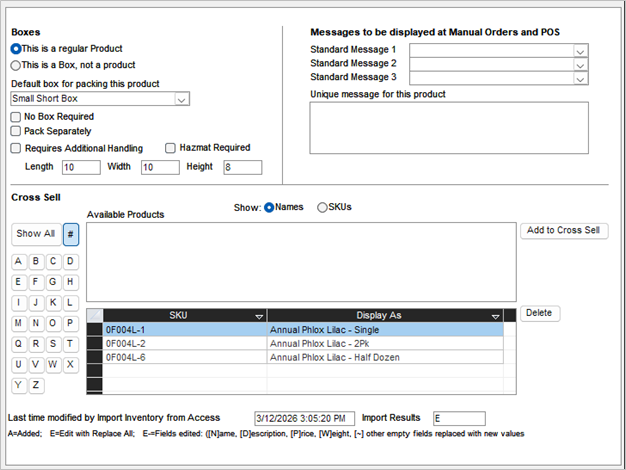
- Displays Extra information about inventory item.
- Boxes -> Information useful for Stone Edge’s internal shipping system which helps automation.
- Messages to be displayed at Manual Orders and POS -> defined as parameters InvStandardMessage1Field, InvStandardMessage2Field, and InvStandardMessage3Field.
- Cross Sell -> Lets items be set as a cross-sell item.
- Bottom of screen lists last edit date and type.
- Miscellaneous Menu
-
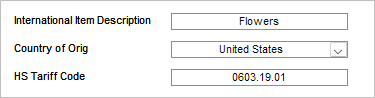
- International Shipping Settings -> Switches screen to show information typically needed for customs forms.
-
-
- International Item Description
- Country of Origin
- HS Tariff Code
-