
Overview
- Allows certain actions to be performed while importing orders based on criteria.
- Works like an if-then statement.
- Runs after orders are imported during processing stage.
- Approval rules will work in sequential order and can be reordered once created.
Approval Rule Options
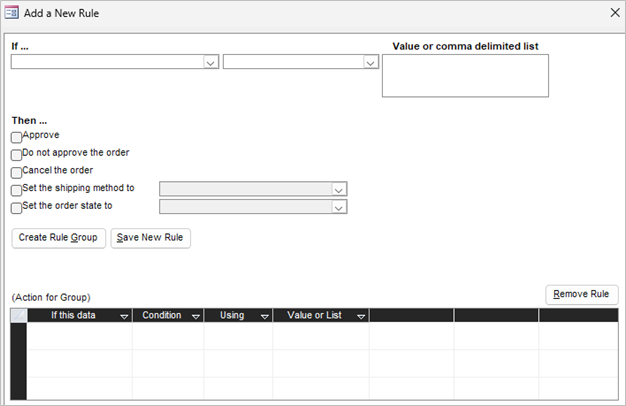
Criteria
- Destination Address 1
- Destination Address 2
- Destination Address Lines (combined)
- Destination Company
- Destination City
- Destination State
- Destination Zipcode
- Destination Country
- There is a separate Ship To address -> Bill-to and ship-to addresses do not match.
- AVS Code – from Web store
- AVS Code – authorize or charge during import
- Shipping Method -> Does not need to match methods in Stone Edge.
- Product Total -> Do not include $ sign.
- Weight of order less backorders -> Excludes backordered items from weight calculation; do not include units of weight.
- Weight of Complete Order -> Based on weights defined in Stone Edge; do not include units of weight.
- Any SKU in the order
- Payment Method -> Can be defined in payment methods (Data Functions).
- CCInfo Field -> From “Orders” table; commonly “Paid” or blank.
- Email, phone or IP # is in a Do Not Ship To list -> List defined in list maintenance (Data Functions).
- Credit card charge at import is declined -> Only if charging cards at import is enabled.
- Parameter ChargeCardsAtImport = True
- Requires credit card processor setup.
- Comments
- MaxMind Fraud Score- > 0-100; where a lower number is less likely to be fraud.
- Parameter CheckMaxMindAtImport = True
- Parameter MaxMindKey required (MaxMind credentials)
- Import must include IP address.
- Number of Drop Ship Vendors
- Shopping Cart -> List is from existing shopping carts in Stone Edge.
Conditions
NOTE: Availability depends on criteria.
- Equals
- Doesn’t Equal
- Includes
- Begins With
- Is Greater Than or Equal to
- Is Less Than or Equal To
- Is Between
- Is Empty
- Is Not Empty
Action
- Approve
- Do not approve the order
- Cancel the order
- Set the shipping method to -> List defined in shipping setup (Shipping Functions).
- Set the order state to -> List defined in order state rules (Order Functions).
Create an Approval Rule
- Main Menu -> Settings (Gear icon) -> Order Functions -> Approval Rules
- Click “New”.

- Set criteria and condition:
- Multiple values can be entered for condition using comma.
- Some criteria allow the wildcard character (*).
- Set action.
- Determine rule type:
- If rule has 1 criteria (simple rule) click “Save New Rule”.
- Click “OK” to exit screen.
OR
-
- If rule should be compound (rule group) click “Create Rule Group”.
- Continue to add criteria and conditions with “Add Criteria” (all actions must be true for rule to trigger).
- When done click X in top-right corner.
- Rules will be listed in table once saved.
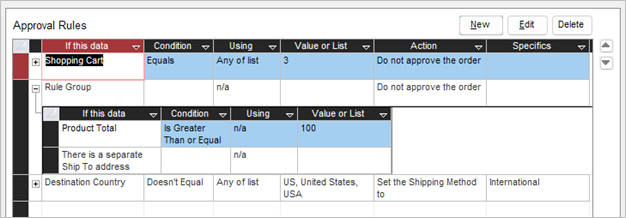
NOTE: only 1 action can be set regardless of simple rule or rule group.
Edit an Approval Rule
- Highlight an existing rule.
- Click “Edit”.
- Make changes to rule.
- Click “Cancel” or X in top-right corner to close screen with no changes.
- Save changes.
- Click “Save New Rule” to save changes (if basic rule).
- Click “Add Criteria” to save changes (if rule group).
- Click X in top-right corner when done (if rule group).
- Popup will close automatically for basic rules.
NOTE: If want to change an approval rule to a rule group, you must create new rule.
Removing all but 1 criteria from rule group valid but still defined as rule group.
Reorder Approval Rules
- Rules will be listed sequentially by order created.
- To reorder rules, highlight existing rule and use up and down arrows on upper-right side of screen.
Delete an Approval Rule
- Highlight existing rule.
- Click “Delete”.
- Click “OK”.
NOTE: Steps regardless of simple rule or rule group.
TIPS
- For approving orders:
- Set parameter: ReviewAllOrders = False and use approval rules to selectively not approve orders.
OR
-
- Set parameter: ReviewAllOrders = Ture and use approval rules to selectively approve orders.
NOTE: having a mix of rules for approval and non-approval can cause issues in logic.
- Using criteria regarding an address (city, state, country):
- Use a list including abbreviations and full name if formatting is unknown.
- Data for conditions can be pasted from data in a text document to lessen chances of error.
- For cart specific rules create a rule group with the shopping cart condition defined.