
Overview
- Steps for adding/editing options for inventory items.
- Options are independent of options defined on website. Options are primarily used during manual orders and editing items on view orders AVO screens.
- NOTE: Please be aware that any options added here manually may be inadvertently changed, based on the selected Options Lists action chosen during an XML Product Import.
- Navigation: Main Menu -> Manage My Inventory -> View & Manage My Inventory -> Attributes & Options
Adding an Option
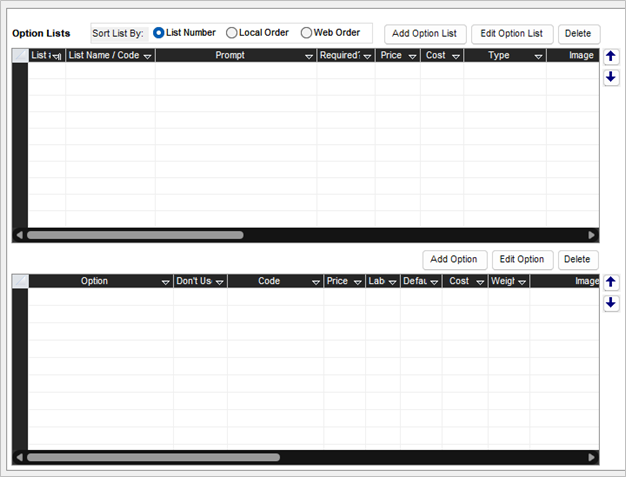
- Click “Add Option List”.
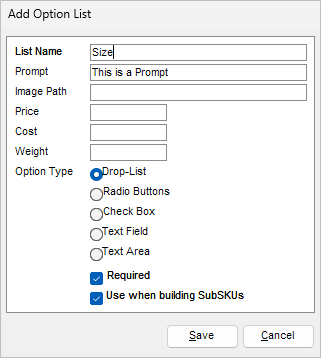
- Choose criteria for the option list, then “Save”.
- List Name -> Name for option list.
- Prompt -> Visual prompt when choosing option when adding inventory item to an order.
- Image Path -> Image saved as a web URL.
- Price -> Defines price of item when option is selected.
- Cost -> Defines cost of item when option is selected.
- Weight -> Defines weight of item when option is selected.
- Option Type -> Defines how the option will be selected when adding inventory item to an order.
- Required -> Sets option to be required when adding inventory item to an order.
- Use when building SubSKUs -> If option list should be included when clicking “Build Sub-SKUs for Item” in menu.
- Click “Add Option”.
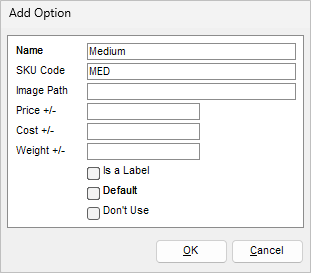
- Choose criteria for option, then “OK”
- Name (Required) -> Name of option
- SKU Code -> Used if building out sub-skus
- Image Path -> Image saved as a web URL.
- Price -> Defines price of item when option is selected. This value is +/- to the item’s original value.
- Cost -> Defines cost of item when option is selected. This value is +/- to the item’s original value.
- Weight -> Defines weight of item when option is selected. This value is +/- to the item’s original value.
- Is a Label -> Applies to some carts and used for alternative text on website.
- Default -> Sets option as default.
- Don’t Use -> Disables option from able to be selected.
- Screen will be updated as options are created.
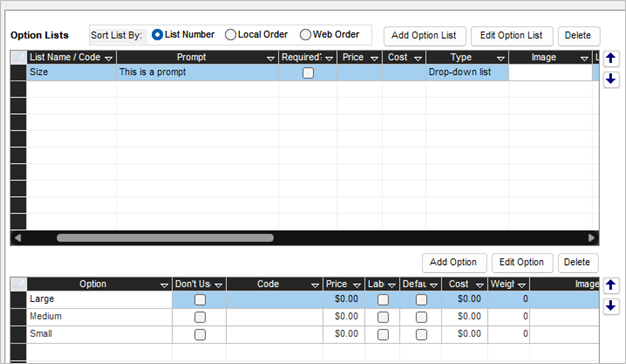
- Continue to create option lists and options until finished. Inventory screen can be closed when done.
NOTE: Arrows on right-side of screen can be used to reorder option lists/options.
Editing an Option
- Navigate to inventory record.
- Select an Option OR Option List by clicking on its row.
- Click “Edit Option” OR “Edit Option List”.
- Edit any criteria on the pop-up.
- Click “OK” or “Save” depending on the screen you are on.
NOTE: It is not advised to edit an option list’s “Option Type” if options already exist. You will be prompted to delete the options if choosing to change the “Option Type” to an incompatible type.
Deleting an Option
- Navigate to inventory record.
- Select an Option OR Option List by clicking on its row.
- Click “Delete”.
- Click “OK”.