PM User Login
Contents of this Topic: ShowHide
Overview
- When the program is initialized, it prompts the user to login with their User Id and Password.
- This screen is also opened by the Log Out button on the Payment
Module Main Menu to allow another user to log into the program on the current workstation without exiting the program.
- After an invalid login attempt is made, the screen displays the name of the current payment database. The name of the current database can always be displayed on the User Log-In screen by selecting Show DB Name On-Screen on the Security and Database Settings screen.
Description of the screen
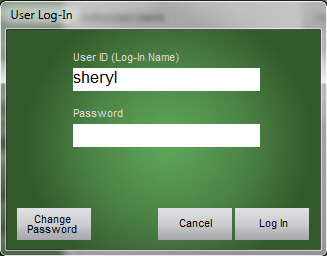
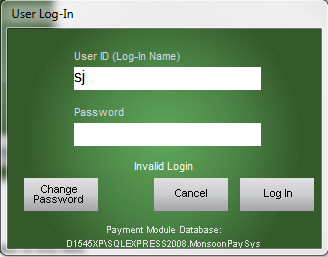
User ID (Log-In Name)
- enter the User ID provided by the Administrator in this field
Password
- new users must enter the temporary password provided by the Administrator in this field before they are prompted to enter a new password the first time they login
- existing users enter their current password in this field and click Log In
Change Password
- opens the Change Password screen where you can change your password
Cancel
- close the User Log-In screen
Log In
- after entering your User ID and Password, click this button to log into the program
Additional Information
Change Password
Main Menu
Settings
Created: 10/18/12
Revised: `12/12/13
Published: 04/13/2016
