PM How to Process a Blind Credit Transaction
Contents of this Topic: ShowHide
Overview
- Not all payment processors support blind credits. If the button is not active, it is most likely does not support blind credits.
- A blind credit means you are crediting the customer's credit card without it being related to a specific transaction.
- Non-administrator UserIDs must be explicitly granted permission to perform this type of transaction.
Procedure
- Navigate to one of the customer's orders through Process Orders or the Point-of-Sale system. Go to the Payment tab or KeyPad tab respectively. Click Payment Module.
You are prompted to login the first time you open the Payment Module through Stone Edge. The User ID with which you log in will be used to process all subsequent payments until Stone Edge is closed and restarted, unless you use the Payment Module Login button on the Main Menu to switch users. You may also be prompted to login to the Payment Module again if the threshold of inactivity is exceeded.
- The customer's billing information from the order is pre-populated in the Payment Terminal.
- Enter the customer's card information and change Amount to the dollar amount you want to credit back to their card.
- Click Blind Credit.
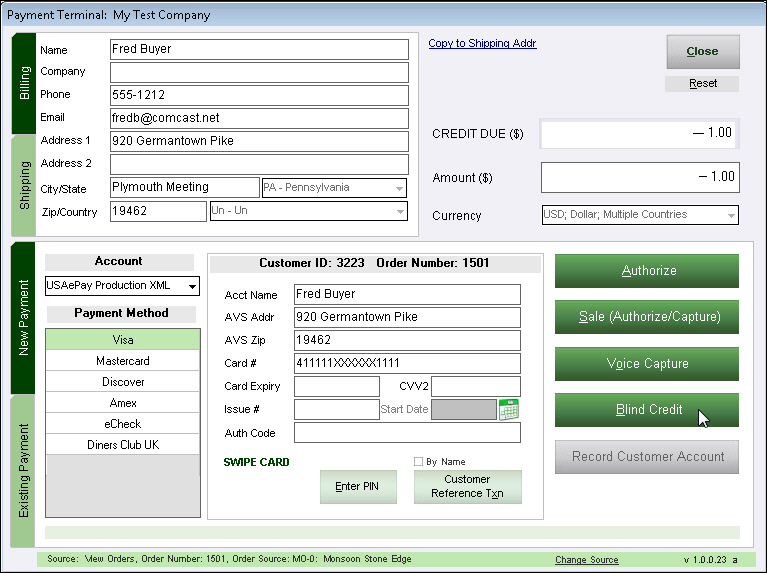
- The response from the payment gateway is displayed.
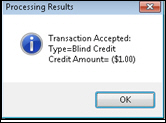
- Click OK to conclude the process.
- The program asks if you want to print the credit slip now or add it to the batch print queue. Make your selection to end the process.
- Click Close to return to the Stone Edge screen from which the Payment Module was invoked.
Additional Information
How to Change a User ID's Permissions
Magnetic Stripe Readers
Main Menu
Payment Terminal
Created: 2/19/13
Revised: 12/11/13
Published: 04/13/2016
