
Overview
- Steps for integrating Amazon with C2C
Amazon Channel Setup
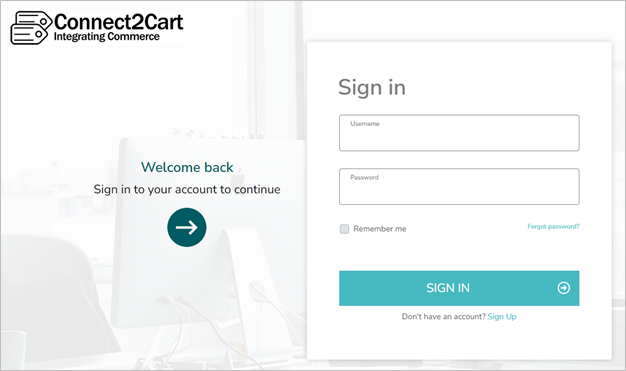
- Login to Connect2Cart: Connect2Cart-Welcome to Connect2Cart-Login.
- If you do not have an account or are unsure of the login, contact support@stoneedge.com.
- If issues occur with logging in/resetting password, try clearing cookies or incognito mode
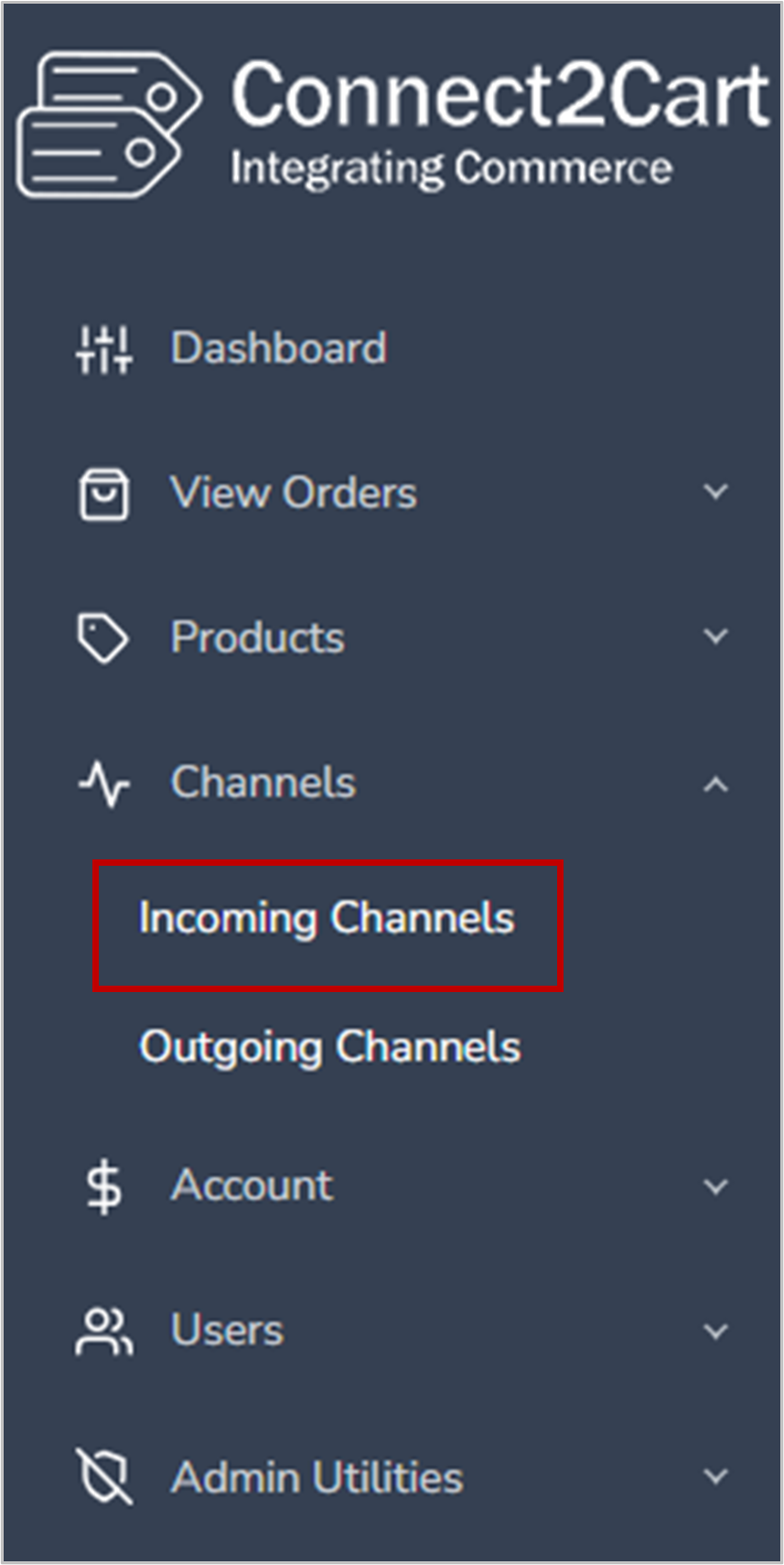
- Click Channels -> Incoming Channels
**NOTE: If a popup about warehouses appears click “Cancel”
- Click “Add Channel” in top-right corner
- Choose Amazon Logo
- Select region for cart
NOTE: If setting in multiple regions, 1 cart must be made for each region - Fill in Fields
- Display name -> Like: SE-Amazon, MyStore_Amazon, MyStoreAmazon (for personal reference)
- Toggle what countries store sells to
- Choose if you use Seller Fulfilled Prime
- FBA = True or FBM = False
- Click “Authenticate”
- Click “Authenticate”
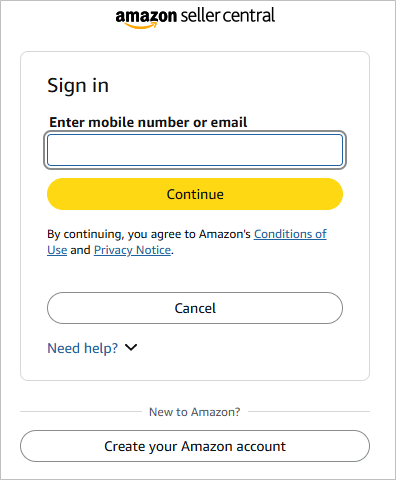
- Sign in to Amazon with Admin account
NOTE: Sign out of any Amazon account beforehand to make sure to not link to the wrong account
- Follow prompts
- Click “Save”
- Contact Stone Edge support (support@stoneedge.com) once finished to complete channel setup
- Stone Edge will provide a username, password, and script used in the following guide to finish cart setup: Setting Up a Connect2Cart Channel – Stone Edge Order Manager
Reauthorizing an Amazon Cart
Amazon Carts must be reauthorized yearly
- Follow steps 1-2 in “Amazon Channel Setup” section
- Click prior made Amazon channel
- Channel Type will be “spapi”
- Click “Modify Channel Settings” on pop-up
- Click “Authenticate” at bottom
- Click “Authenticate”
- Sign in to Amazon with Admin account
NOTE: Sign out of any Amazon account beforehand to make sure to not link to the wrong account - Follow prompts
- Click “Save”
- Notify Stone Edge support (support@stoneedge.com) if orders do not seem to be coming in