
Overview
- How to update and create email templates.
- Stone Edge uses double angle brackets to specify tags to grab order data and perform special functions.
- Ex: <<OrderNumber>>
- Email templates can use simple HTML coding for extra formatting.
- Some email templates have both plain text formatting and HTML formatting to allow emails to work regardless of the customer’s email service.
- General HTML knowledge found this basic HTML Tutorial.
- Enables Custom templates to move seamlessly with Stone Edge updates by saving with a new name.
- Email templates can be preset to send on specific actions, like sending out tracking numbers or issuing credit.
- They can also be selected manually when doing a one-off email to a customer.
Using Email Template Editor
- Main Menu -> Settings (Gear Icon) -> Report Functions -> Email Template Editor.
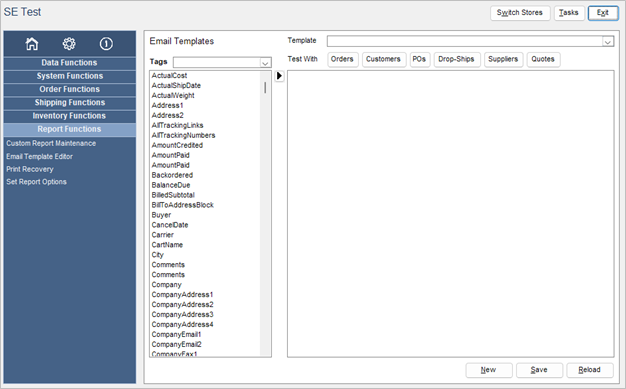
- Use the dropdown to pick an existing template to edit or click “New” to create a new template.
- Edit email template
- Enter fixed Email text in template editor box.
- Use tags and double-click or use the right arrow to add to the template.
- Click “Reload” to remove any edits to the template.
- Click buttons next to “Test With” to show template against live order data
- Order with lowest order number will be shown
- Arrows at bottom can change order used for testing
- Click “Back to Edit” to exit testing mode
NOTE: You cannot save in testing mode

- Click “Save” when done
Using a Text Editor
- Locate where you email templates are saved
- Click the i on the main menu and view the filepath next to Email Template Location
- Go to system parameters and check parameter
- Access database: EmailTemplateLocation -> direct filepath
- SQL database: SharedFileLocation -> email template folder located in filepath
- Navigate to email template folder using file explorer
-
- Image show default filepath of: C:\StoneEdge\EmailTemplates
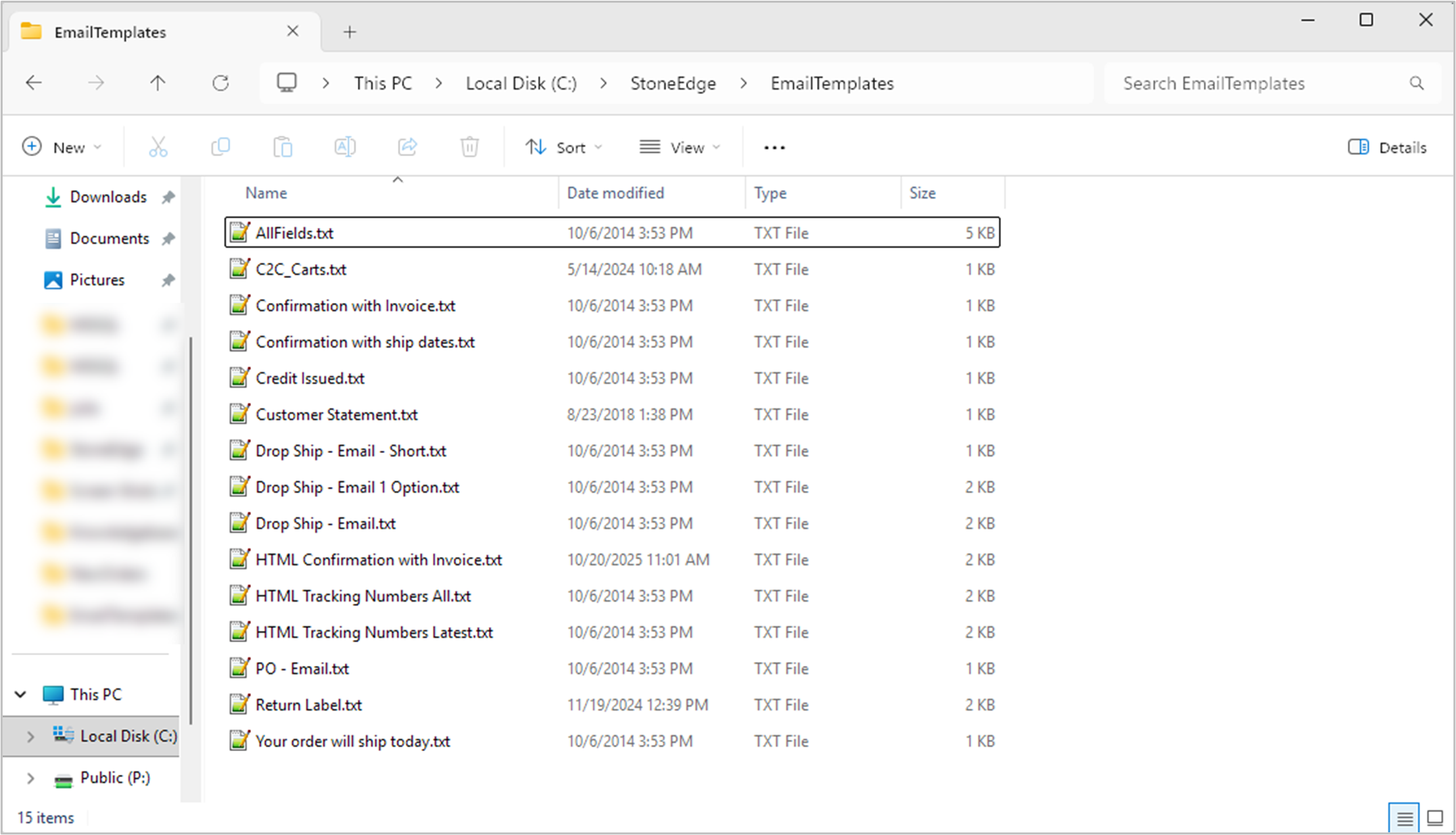
- Image show default filepath of: C:\StoneEdge\EmailTemplates
-
- Open an email template with a text editor (like notepad or notepad++)
-
- To create a new email template, create a new .txt file in the folder or copy an existing file
-
- Edit email template and “Save” in text editor to save changes
-
- Tags must be used to reference order data fields with double angle bracket
Ex: <<OrderNumber>> - Review attached excel document for full list of available tags
- Tags must be used to reference order data fields with double angle bracket
-
- Email template can be tested using Email Template Editor or sending email to self
Extra Settings
Parameters
- AllowDeleteEmailTemplate -> True enables delete button on Email Template Editor screen
- AllowChangeEmailAddress -> True allows email addresses (to and BCC) to be changed before sending email